On this page
- First, find the cause
- Network fixes
- 1. Test speed on the streaming device
- 2. Use Ethernet
- 3. If you must use Wi-Fi, use 5 GHz and move things
- 4. Restart the router
- 5. Check for bandwidth hogs
- Device fixes
- 6. Restart the streaming device
- 7. Clear the player's cache
- 8. Switch the video decoder
- 9. Increase the player's buffer size
- Source and routing fixes
- 10. Try a different DNS
- 11. Test with and without a VPN
- When it's the source
- Frequently asked questions
Buffering is the number one complaint with IPTV, and the frustrating part is that it can come from three different places: your home network, your streaming device, or the source itself. The fixes are different for each, so it's worth spending two minutes working out which one you're dealing with.
First, find the cause
- Only one device buffers? It's that device or its connection.
- Every device buffers, even on other apps like YouTube? It's your internet connection or router.
- Only IPTV buffers, and only on certain channels or at busy times? The source is probably struggling. Big live sports events are the classic example.
With that in mind, here are the fixes, roughly in the order they help.
Network fixes
1. Test speed on the streaming device
Your phone next to the router tells you nothing about the TV in the other room. Install a speed test app on the Fire TV or Android TV box and run it there. Look for a steady 10 Mbps or more per HD stream.
2. Use Ethernet
This is the single biggest fix. A cable removes interference, dropouts and speed swings. If your device has no Ethernet port, adapters exist for Fire TV and Chromecast. We compare the options in Ethernet vs Wi-Fi for streaming.
3. If you must use Wi-Fi, use 5 GHz and move things
Connect to your router's 5 GHz network rather than 2.4 GHz, and keep the device out of cabinets and away from the back of the TV if possible. A mesh node near the TV can help a lot in bigger homes.
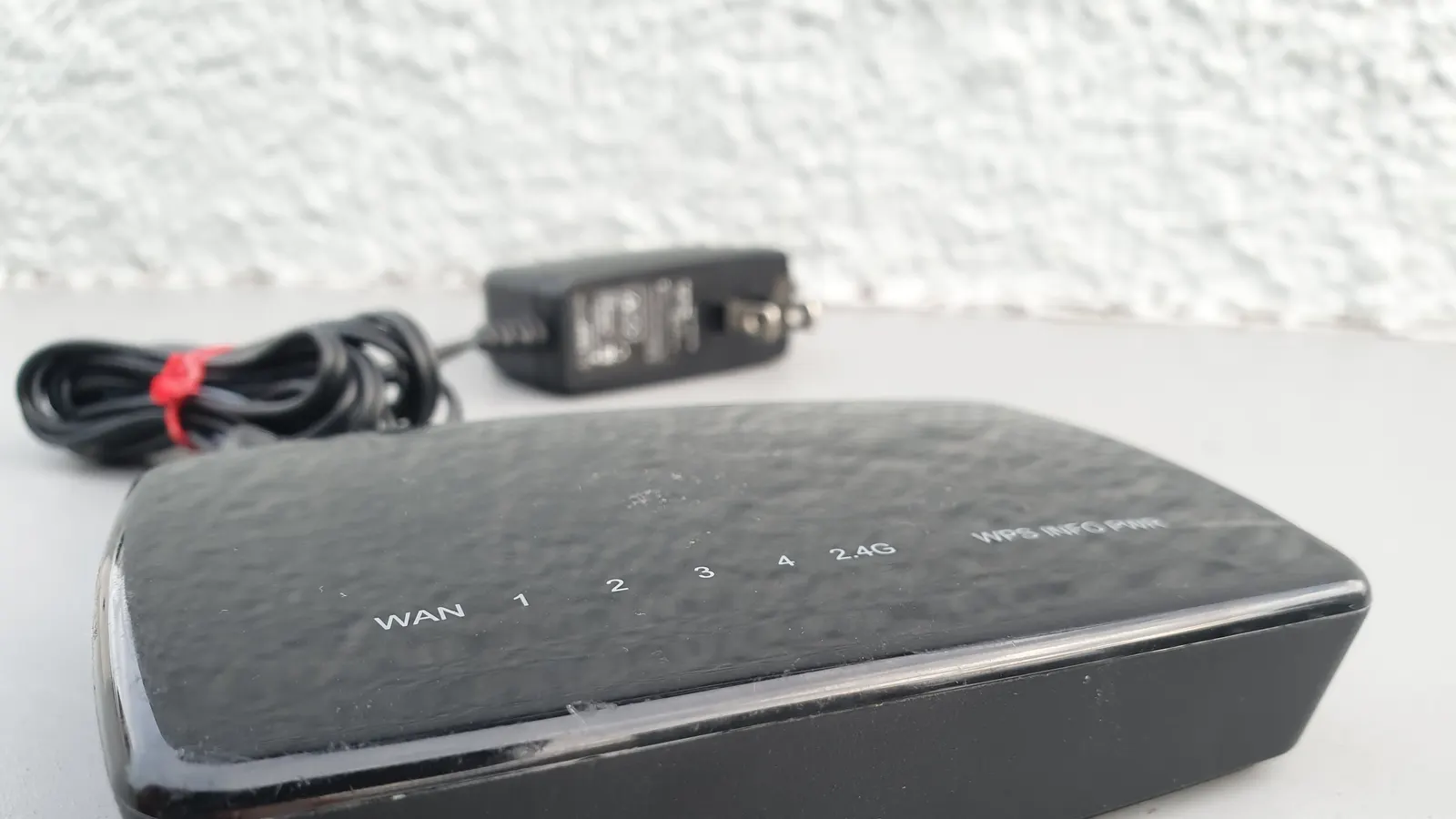
4. Restart the router
Old advice, still valid. Routers get sluggish after weeks of uptime. Unplug it for 30 seconds.
5. Check for bandwidth hogs
Game downloads, cloud backups and 4K streams on other TVs all compete. Try pausing them and see if buffering stops.
Device fixes
6. Restart the streaming device
Cheap sticks run low on memory. A restart clears it. On Fire TV, hold Select and Play together for about five seconds.
7. Clear the player's cache
In Android settings, open Apps, find your player and clear its cache (not its data, or you'll lose your settings).
8. Switch the video decoder
Most players let you choose between hardware and software decoding. Hardware is usually smoother, but some streams play better with software decoding on certain devices. Try the other option.
9. Increase the player's buffer size
Some players, including TiviMate, have a buffer size setting under Playback. A larger buffer adds a second or two of delay but rides out small dips.
If a stream offers several qualities, try a lower one. An SD feed that plays smoothly beats an HD feed that freezes every minute.
Source and routing fixes
10. Try a different DNS
Changing your router or device DNS to a public resolver like Cloudflare (1.1.1.1) or Google (8.8.8.8) can speed up connecting to stream servers. It won't fix a slow stream, but it can fix slow channel starts.
11. Test with and without a VPN
If your provider throttles video, a VPN can help. If not, it adds a hop and may make things worse. Test both ways. Our VPN guide explains when it's worth it.
When it's the source
If everything above checks out and buffering hits multiple devices at the same moments, the server is overloaded. There's nothing you can fix at home. A reliable, licensed service with proper infrastructure is the real answer. See legal IPTV services for options that don't fall over during big games.
Frequently asked questions
- Why does IPTV buffer when Netflix doesn't?
- Netflix adapts quality instantly and caches far ahead from servers close to you. Live IPTV streams have little room to buffer and often come from a single server, so small network hiccups show up as freezes.
- Does a VPN fix IPTV buffering?
- Only if your internet provider is throttling video traffic. In most cases a VPN adds a little latency and can make buffering slightly worse. Test with it on and off.
- What internet speed do I need for IPTV?
- Roughly 10 Mbps per HD stream and 25 Mbps or more per 4K stream, measured on the streaming device itself. Consistency matters more than peak speed.
- How do I know if the problem is the provider?
- If several channels buffer at the same time on different devices, especially during big live events, the source is likely overloaded. If only one device buffers, the problem is local.
Written by
Home network writer
Nadia writes about home networking and troubleshooting streaming setups. Replace this bio with your real author's background.
More from Nadia


Comments
Sign in to ask a question or share what worked for you.
Sign in to commentNo comments yet. Questions about a step that didn't work for you are welcome.