On this page
Quick stepsabout 15 min
- 1
Check the Amazon Appstore first. Search the Appstore for your player. If it's there, install it normally and skip the sideloading steps.
- 2
Turn on Developer options. Go to Settings, My Fire TV, About, and select your device name seven times until Developer options appear.
- 3
Allow unknown apps. In Settings, My Fire TV, Developer options, allow installs from unknown apps for the Downloader app.
- 4
Install Downloader. Search the Appstore for Downloader by AFTVnews and install it.
- 5
Download the player. Open Downloader, enter the official download link from the player developer, and install the file.
- 6
Add your playlist. Open the player and add your M3U link or Xtream login.
The Fire TV Stick is cheap, small and plugs into any TV, which is why it's one of the most popular IPTV devices around. Getting a player onto it is easy once you know where Amazon hides the settings. This guide covers both routes: installing from the Appstore, and sideloading when the app isn't there.
First, check your model
Most Fire TV devices run Fire OS, which is based on Android and can install Android apps from outside the Appstore. Amazon has also started shipping some devices with its newer Vega OS, which doesn't support sideloading Android apps.
If you're buying a Fire TV specifically for an IPTV player that isn't in the Appstore, check that the model runs Fire OS. On a Vega OS device you're limited to apps Amazon approves.
You can see your software under Settings, My Fire TV, About.
Option 1: Install from the Appstore
Always look here first. Search for the player you want. Several IPTV players are available directly, and apps installed this way update automatically. If you find it, install it and jump to adding your playlist.
Option 2: Sideload the player
Some players, including TiviMate, aren't in Amazon's store. You can still install them safely by downloading the official file.
Turn on Developer options
- Open Settings, then My Fire TV, then About.
- Highlight your device name (for example "Fire TV Stick 4K") and press the select button seven times. You'll see a message that you're now a developer.
- Press back. Developer options now appears under My Fire TV.
Install Downloader and allow it to install apps
- Search the Appstore for Downloader (by AFTVnews) and install it.
- Go to Settings, My Fire TV, Developer options, Install unknown apps, and switch Downloader on.
Download and install the player
- Open Downloader and type the download address from the player developer's official website.
- When the file finishes, select Install.
- After installing, choose Delete to remove the installer file and free up storage. Fire TV Sticks don't have much.
Only download players from the developer's own site. Repackaged "modded" versions from random links are a common way malware ends up on streaming devices.
Add your playlist
Open the player and add your M3U URL or Xtream login from your provider. If you're using TiviMate, follow our TiviMate setup guide for the playlist and EPG steps.
Make it run smoothly on a Stick
Fire TV Sticks have limited memory, so a few tweaks go a long way:
- Hide channel groups you don't use. Smaller lists mean less memory and faster guide loading.
- Turn off background data collection. Under Settings, Preferences, Privacy Settings, you can switch off device usage data and app usage data.
- Uninstall apps you don't use. Free storage helps the player cache guide data.
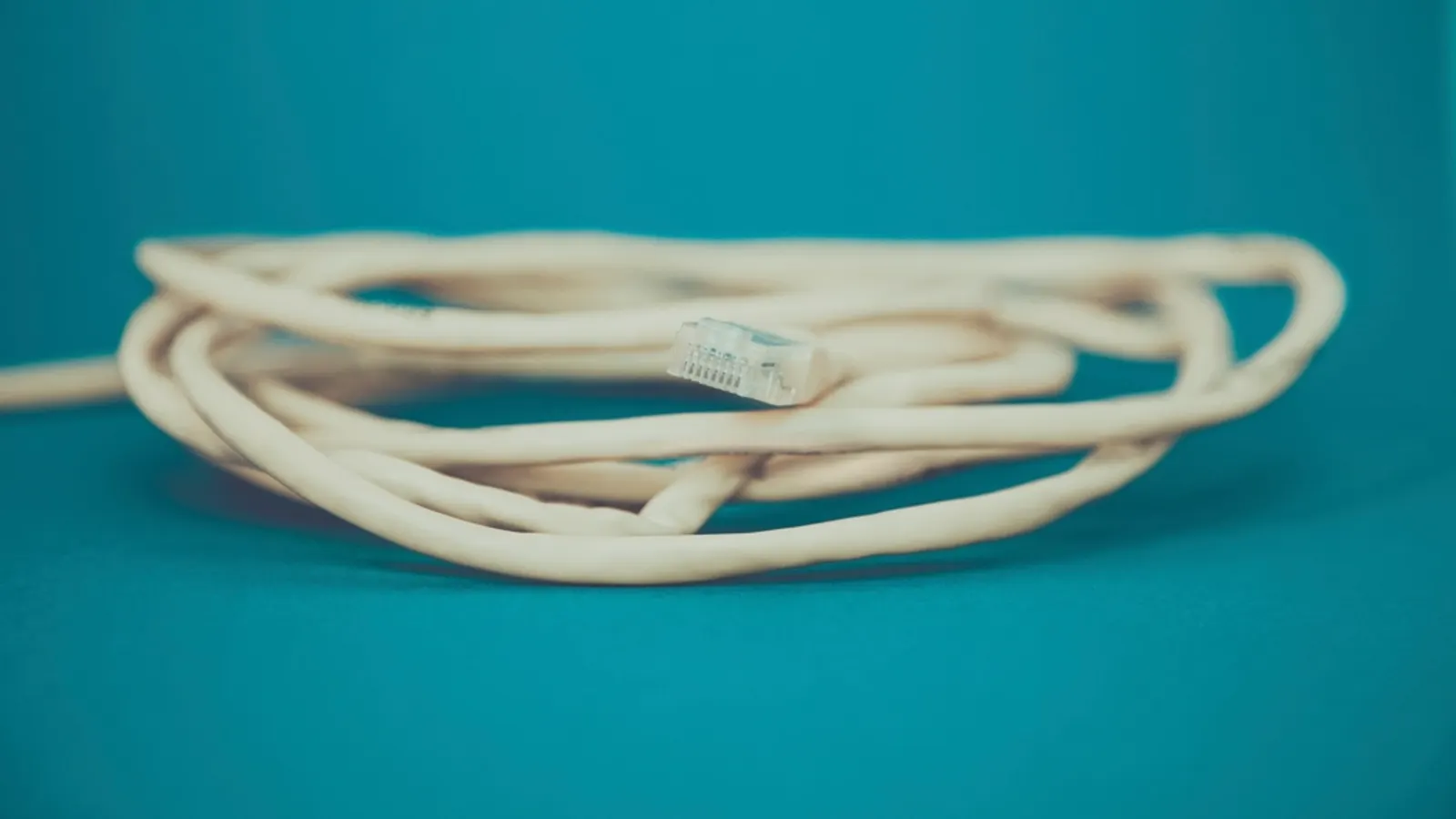
- Use a wired connection if you can. Amazon sells an Ethernet adapter for Fire TV. Our Ethernet vs Wi-Fi guide explains the difference it makes.
- Restart occasionally. Holding Select and Play for about five seconds restarts the Stick and clears memory.
If channels still stutter, work through our IPTV buffering fixes.
Frequently asked questions
- Is sideloading apps on a Fire TV Stick allowed?
- Yes. Amazon includes a setting to allow apps from unknown sources. Just download apps from the developer's official site so you know the file is genuine.
- Why don't I see Developer options?
- On recent Fire OS versions it's hidden by default. Go to Settings, My Fire TV, About and select your device name seven times to reveal it.
- Can every Fire TV device sideload Android apps?
- Most Fire OS devices can. Some newer models run Amazon's Vega OS instead of Android-based Fire OS and don't support installing Android apps from outside the Appstore, so check your model before buying for this purpose.
- Which Fire TV Stick is best for IPTV?
- Pick a model with more memory and Wi-Fi 6 support if you can, and consider Amazon's Ethernet adapter. Extra RAM helps players load big channel lists and guides.
Written by
Editor
Sam edits IPTVTips and tests players on Fire TV, Google TV and Apple TV. Replace this bio with your real editor's background.
More from Sam
Comments
Sign in to ask a question or share what worked for you.
Sign in to commentNo comments yet. Questions about a step that didn't work for you are welcome.