On this page
Quick stepsabout 15 min
- 1
Make sure you have TiviMate Premium. Recording is a Premium feature, bought in the app on Google TV or through the TiviMate Companion app on Fire TV.
- 2
Choose where recordings are saved. In TiviMate's recording settings, pick the storage: a USB drive or a network folder is far better than a Fire TV Stick's internal storage.
- 3
Record a programme from the guide. Highlight a programme in the TV guide, open its options and choose to record it. For a programme on now, you can start recording from the player.
- 4
Check your connection limit. Each recording uses one of your service's connections. To watch one channel while recording another, you need at least two.
- 5
Keep the device awake. The device has to be on to record. Check its sleep settings so it doesn't power down before a scheduled recording.
Yes, TiviMate can record, as part of TiviMate Premium. You can record the channel you're watching or schedule programmes from the TV guide. Two things decide whether it works well: where the recordings are saved (a Fire TV Stick's own storage fills up almost immediately) and how many connections your login allows (each recording uses one). Get those right and it behaves like a normal DVR.
What you need
- TiviMate Premium. Recording is listed among TiviMate's features on its Google Play page and is part of Premium, which costs roughly $10 a year or a lifetime fee, bought in the app on Google TV or through the TiviMate Companion app on Fire TV.
- Storage. Somewhere with plenty of free space (see below).
- Enough connections. One per recording, plus one for whatever you're watching.
- A service whose terms allow it. Licensed services set their own rules on recording. Check yours.
Where to save recordings
A rough guide: an hour of HD uses somewhere between 1 and 3 GB depending on the channel's quality. 4K uses much more.
| Storage | Good for | Notes |
|---|---|---|
| Internal storage | The odd short recording | Fire TV sticks usually have only a few GB free. Fills fast and slows the stick down. |
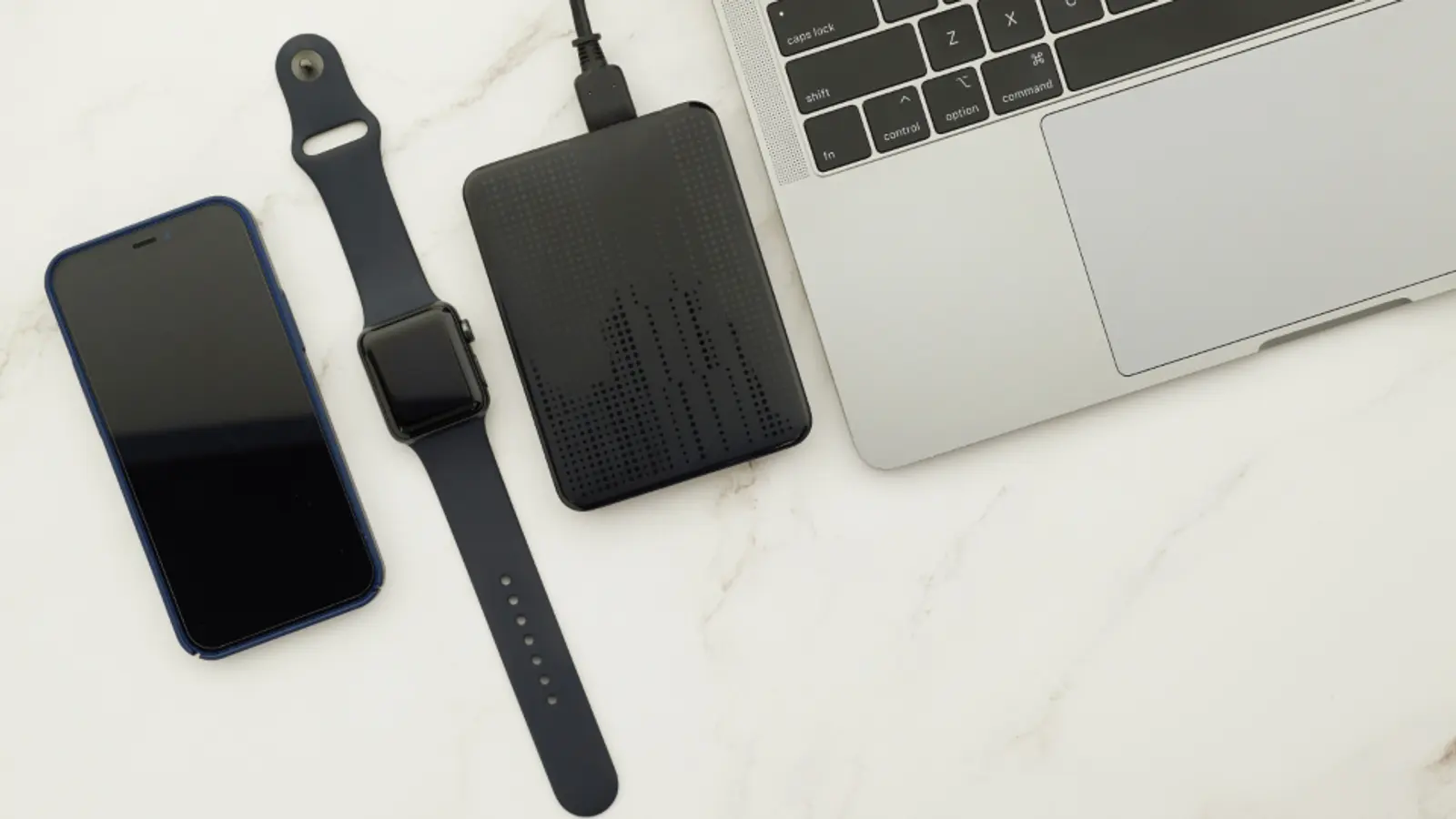
| USB drive | Regular recording on boxes with USB | Nvidia Shield, Fire TV Cube and many Google TV boxes have USB ports. Sticks usually don't. |
| Network folder | Serious recording, any device | A shared folder on a NAS or always-on computer. Plenty of space, and nothing to plug into the TV. |
Set the location in TiviMate's recording settings before your first recording. If you're choosing hardware with recording in mind, the Nvidia Shield with a USB drive is the long-standing favourite; see our device comparison.
How to record
Record what's on now
While watching a channel, open the player's options and choose to record. TiviMate records until the programme ends, according to the guide.
Schedule from the guide
Open the TV guide, highlight a future programme, open its options (long-press the select button) and choose record. Scheduled recordings appear in TiviMate's recordings section, where you can check or cancel them.
Recordings depend on the guide being right. If a programme's times are wrong in the guide, the recording will be too. Fix guide problems first with our TiviMate EPG guide, and consider adding a few minutes of padding before and after in the recording settings, since live programmes often overrun.
The connection limit catches everyone
Your service login allows a set number of streams at once, usually one or two. A recording is a stream. So with a one-connection login:
- You can't watch a different channel while recording.
- Two overlapping scheduled recordings means one fails.
- Someone watching on another device can stop a recording.
If you record often, you'll want at least two connections. When a recording fails with a connection error, this is the usual reason.
Keep the device awake
TiviMate records on the device itself, so the device has to be on. A Fire TV or Android TV box in deep sleep, or switched off at the wall, won't record. Check the device's sleep settings, and don't cut power at the socket overnight if you have recordings scheduled.
Catch-up: the alternative to recording
Some services offer catch-up (also called TV archive): recent programmes stored on their servers for a few days, on certain channels. In TiviMate, channels with catch-up let you scroll back in the guide and play past programmes. It uses no storage on your side, but you're relying on the service to keep it, and it disappears after a few days. Recording is yours until you delete it.
Common recording problems
- Recording failed: usually no free connection, or no free storage.
- Recording cut short: the programme overran the guide time. Add end padding.
- Recording didn't start: the device was asleep or off.
- Recording is choppy: the storage is too slow (some cheap USB sticks) or the network folder is on Wi-Fi. A wired connection and a proper drive help.
On Apple devices, UHF offers recording through a free companion server on a home computer instead; see the best IPTV player for Apple TV. For a home-server approach that records for every TV in the house, look at IPTV in Jellyfin.
Frequently asked questions
- Can TiviMate record live TV?
- Yes. Recording is part of TiviMate Premium. You can record what's on now or schedule programmes from the TV guide, as long as the device stays on and has somewhere to save the files.
- Is TiviMate recording free?
- No. Recording needs TiviMate Premium, which costs roughly $10 a year or a one-off lifetime fee (in the app on Google TV, or via the TiviMate Companion app on Fire TV).
- Where does TiviMate save recordings on a Firestick?
- By default, internal storage, which on most sticks is only a few gigabytes free. An hour of HD can use one to three gigabytes, so a USB drive (on devices that support one) or a network folder is a much better choice.
- Why can't I watch another channel while TiviMate records?
- Your service login allows a limited number of simultaneous streams. A recording uses one. With a one-connection login, you can record or watch, not both.
- What's the difference between catch-up and recording?
- Catch-up is stored by the service on its servers for a few days, and only on channels that offer it. Recording saves the programme to your own storage, so it's yours to keep until you delete it.
Written by
Editor
Sam edits IPTVTips and tests players on Fire TV, Google TV and Apple TV. Replace this bio with your real editor's background.
More from Sam

Comments
Sign in to ask a question or share what worked for you.
Sign in to commentNo comments yet. Questions about a step that didn't work for you are welcome.