On this page
- Quick steps
- Shield TV Pro or Shield TV?
- Step 1: Wire it up
- Step 2: Install a player and add your playlist
- Step 3: Set up recording
- Step 4: Tune playback
- Storage tips for the Shield TV Pro
- Other players on the Shield
- Plex and Jellyfin on the Shield
- Common mistakes to avoid
- Keep it updated
- Frequently asked questions
Quick stepsabout 20 min
- 1
Connect by Ethernet. Plug the Shield into your router with a network cable for the steadiest live TV.
- 2
Install a player. Install TiviMate, Sparkle TV, XCIPTV or Kodi from Google Play.
- 3
Add your playlist and guide. Enter your Xtream Codes login or M3U link, then add the EPG if it doesn't load automatically.
- 4
Set up recording storage. On a Shield TV Pro, plug in a USB drive and choose it as the recording location in your player.
- 5
Enable frame rate matching. Turn on the player's auto frame rate option, or the Shield's match frame rate setting, for smooth live sport.
The Nvidia Shield TV is the enthusiast's favourite IPTV box, and the setup is simple: it has Google Play, so TiviMate and other players install normally. What sets it apart is gigabit Ethernet and, on the Shield TV Pro, USB 3.0 for recording drives. Nvidia was still shipping updates in 2026: Shield Experience Upgrade 9.2.4 arrived in February with fixes and security patches.
Shield TV Pro or Shield TV?
| Shield TV Pro | Shield TV (tube) | |
|---|---|---|
| RAM | 3 GB | 2 GB |
| Storage | 16 GB | 8 GB |
| Ethernet | Gigabit | Gigabit |
| USB | USB 3.0 | None |
Specs from AFTVnews's device comparison (AFTVnews). For IPTV with recording, the Pro is the one to get.
Step 1: Wire it up
Plug the Shield into your router with an Ethernet cable. It's the single best thing you can do for live TV; see Ethernet vs Wi-Fi for streaming.
Step 2: Install a player and add your playlist
From Google Play, install TiviMate (or Sparkle TV, XCIPTV or Kodi). Add your Xtream Codes login or M3U link; see how to add a playlist to TiviMate. Add the guide if needed: EPG in TiviMate.
Step 3: Set up recording
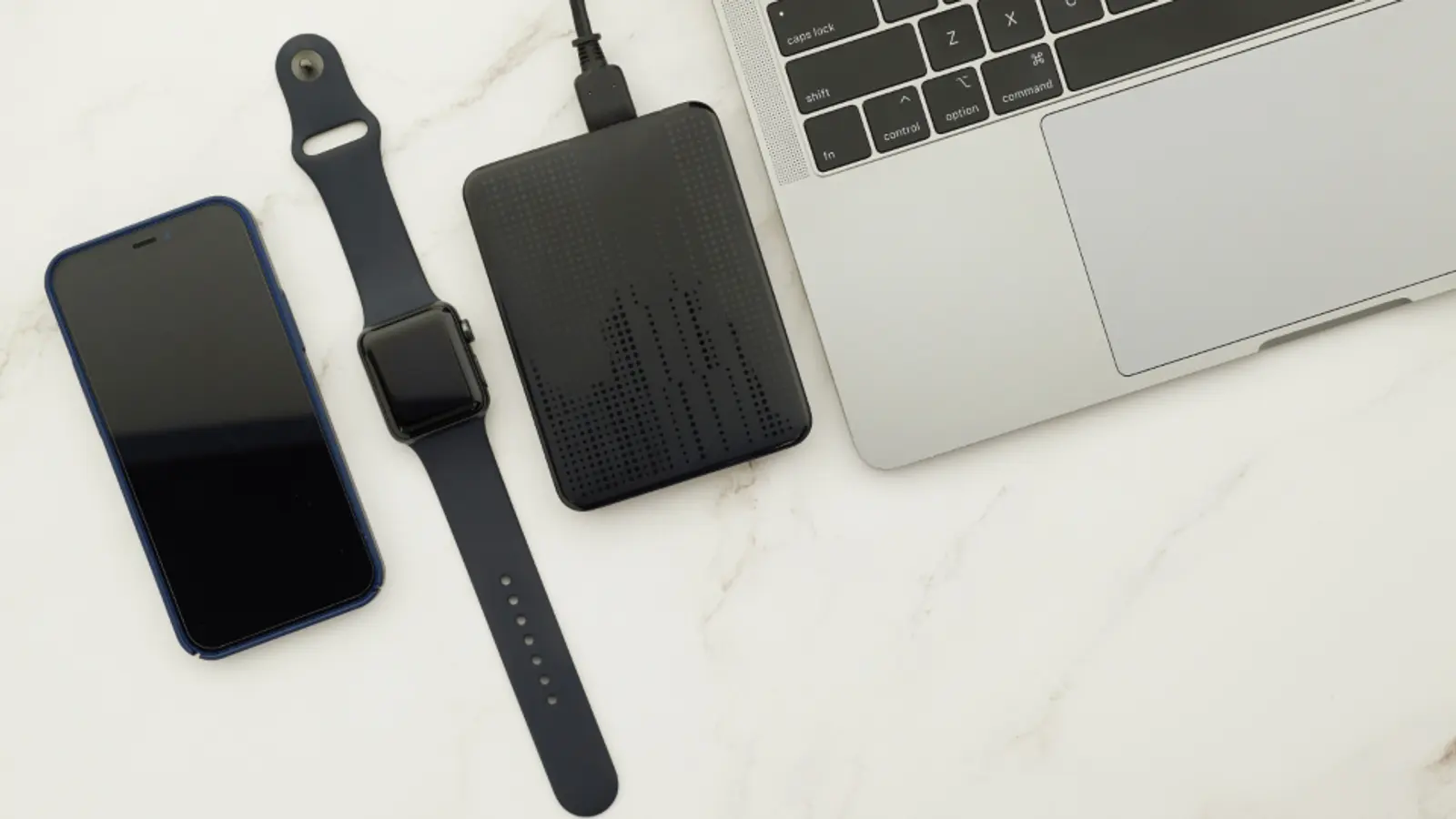
- Plug a USB drive into the Shield TV Pro. A proper external hard drive or SSD is better than a small memory stick for long recordings.
- When Android asks, you can set it up as removable storage or adopt it as internal storage. Removable is simpler if you might move the drive later.
- In your player's recording settings, choose the drive as the recording location.
Each recording uses one of your service's connections. How that works, and what to do when recordings fail, is in can TiviMate record?
Step 4: Tune playback
- Auto frame rate: turn it on in your player (TiviMate calls it AFR) or use the Shield's match frame rate display setting, so 50 and 60 fps sport plays smoothly.
- AI upscaling: the Shield's upscaling can sharpen HD channels on a 4K TV. Try it on and off; some people prefer it off for sport.
- Audio: if a channel has no sound through a soundbar, see no sound or black screen.
Storage tips for the Shield TV Pro
The Pro has 16 GB of built-in storage, which fills up with apps and guide data. For recordings, use an external drive. A portable SSD or a powered external hard drive is more reliable than a small USB stick for hours of video. If you adopt a drive as internal storage, Android formats it for that Shield only, so decide before you fill it.
Other players on the Shield
Because the Shield has Google Play and plenty of power, it runs every Android TV player well: TiviMate, Sparkle TV, XCIPTV and Kodi. If you also use an antenna with an HDHomeRun, Sparkle can show both in one guide; see our Sparkle TV guide.
Plex and Jellyfin on the Shield
The Shield TV Pro can run Plex Media Server itself, which some people use as an all-in-one home server. For IPTV with Plex you'd still need Threadfin running somewhere; see IPTV in Plex. The Jellyfin app on the Shield plays Live TV from a Jellyfin server on another machine.
Common mistakes to avoid
- Recording to a cheap slow USB stick.
- Using Wi-Fi when gigabit Ethernet is built in.
- Adopting a drive as internal storage without meaning to.
Keep it updated
Check for system updates in the Shield's settings. Nvidia's continued updates are one of the reasons the Shield outlives cheaper devices.
Weighing it against cheaper options? See Nvidia Shield vs Firestick.
Frequently asked questions
- Is the Nvidia Shield good for IPTV?
- Yes, it's one of the best. It runs IPTV players from Google Play, has gigabit Ethernet, and the Pro model has USB 3.0 for recording drives. It still received software updates in 2026.
- Can the Nvidia Shield record IPTV?
- Yes, through your player. With TiviMate Premium, XCIPTV, Sparkle Plus or Kodi, recordings can be saved to a USB drive on the Shield TV Pro or to a network folder.
- Which Shield should I get for IPTV?
- The Shield TV Pro. The tube-shaped Shield TV has no USB ports and less memory, which limits recording.
- Does the Shield need sideloading for TiviMate?
- No. The Shield has Google Play, so TiviMate installs normally.
- Can the Shield use Wi-Fi for IPTV?
- Yes, but it's Wi-Fi 5, so Ethernet is the better choice for live TV.
- Does the tube Shield work for IPTV?
- Yes for watching, but it has no USB ports, so recording needs a network folder.
- Can the Shield run Kodi?
- Yes, from Google Play.
- Is the Shield good for 4K IPTV?
- Yes, for H.264 and HEVC 4K streams; it lacks AV1 decoding.
- Can the Shield use Sparkle TV with an antenna?
- Yes, via an HDHomeRun on your network.
Written by
Editor
Sam edits IPTVTips and tests players on Fire TV, Google TV and Apple TV. Replace this bio with your real editor's background.
More from Sam

Comments
Sign in to ask a question or share what worked for you.
Sign in to commentNo comments yet. Questions about a step that didn't work for you are welcome.